You have a ChatGPT account. You also have a Claude account. Maybe you use Gemini for certain tasks, and Perplexity for research.
You are using multiple AI models because each one is better at different things. ChatGPT for brainstorming. Claude for long-form writing. Gemini for analysis. Perplexity for research.
This is smart.
But every time you switch between them, you context switch. And context switching costs you more than the AI response time saves you.
You opened this article to learn how to use multiple AI models together. But first, you had to find this article among your browser tabs — next to ChatGPT, Claude, and whatever else is open. Now you’re here. Reading this. While three AI tabs compete for your attention.
Have you ever noticed that you open Claude for one task, then ChatGPT for another, and somehow end up with five browser tabs open — one for each AI tool?
That is not multitasking. That is fragmentation.
Curious what those AI tool hops cost you? Try the Focus Points Calculator — it measures how much of your day gets eaten by switching between AI tools.
The Multi-Model Nightmare
Each AI tool is a separate environment. A separate URL. A separate login. A separate window or tab.
To use ChatGPT, you open a tab. To use Claude, you open another tab. To use Gemini, a third. Each tab sits in your browser, competing for attention.
A 2025 survey from Writer found that 67% of knowledge workers now use multiple AI tools regularly. And 52% report that managing the different interfaces is a source of friction.
The irony is rich. You use multiple AI tools to be more productive. The overhead of managing them reduces your net productivity.
The Cost of Hopping Between AI Tools
Each AI tool hop costs you:
- 3 seconds to locate and open the right tab
- 5 seconds to re-orient yourself within the interface
- 10-30 seconds to re-establish context — what were you working on in this tool?
- 1-5 minutes of context recovery when you return to your main task
The visible costs are small. The invisible costs are large.
When you use AI tools inside a regular browser, each tool lives alongside your other open tabs. The email tab. The Slack tab. The news tab. The tool you need is buried in a row of distractions.
You open Claude to write something. You see a notification badge on your email tab. You tell yourself you will check it “quickly.” Twenty minutes later, you close eight tabs and wonder what happened.
The Single-Surface Approach
The fix is not to stop using multiple AI models. The fix is to access them from a single surface.
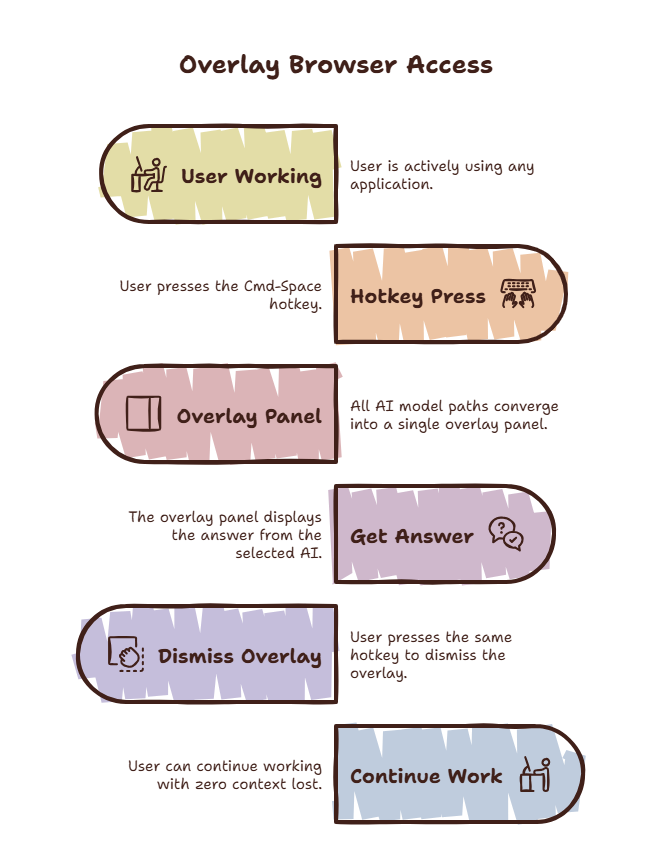
Instead of three browser tabs for three AI tools, use one overlay browser that gives you access to all three. The overlay is a single hotkey away. Inside the overlay, you bookmark ChatGPT, Claude, Gemini, Perplexity — whatever you need.
Press Shift-Space. The overlay appears. Select the AI tool you need. Ask your question. Read the answer. Press Shift-Space again. The overlay disappears.
You never left your workspace. You never opened a new tab. You never saw your email notifications. You just used three different AI models without a single context switch.
For a full explanation of why this works, read our guide on how to use AI efficiently.
Why This Works Better Than Separate Windows
Separate windows look organized. You can arrange them on your screen. Visual organization is not cognitive organization.
When you have three AI windows visible, your brain is processing three environments simultaneously. Each window is a source of visual information. Each one competes for attention. Even if you ignore them, your brain is doing work to suppress them.
An overlay solves this by making each AI tool invisible until you summon it. Your brain processes one environment — your current workspace. The AI tools exist as potential, not as presence. You reach for them when needed. They recede when not.
This is the difference between a cluttered physical desk and a clean one. The visual noise reduction improves focus even when you are not directly interacting with the tools.
Practical Setup
- Install an overlay browser like SiteQuest
- Bookmark ChatGPT, Claude, Gemini, and any other AI tools you use
- Set your preferred hotkey — Shift-Space
- When working, keep your AI tools in the overlay, not in your regular browser
- When you need an AI tool, use the hotkey, select the tool, get your answer, dismiss
The transition will feel strange for the first day. You will instinctively reach for your browser. Push through it. By day three, the hotkey will be automatic.
For developers, pair this with editor-integrated AI tools for maximum efficiency.
The SiteQuest Perspective
SiteQuest was built for exactly this workflow. A lightweight overlay browser that keeps all your AI tools one hotkey away. No tabs. No switching. No context loss. Multiple models, one surface, zero friction.
Final Thought
The best multi-model setup is the one where you forget you are even switching models.