You use ChatGPT for brainstorming. Claude for writing. Perplexity for research. Gemini for data analysis. Maybe Copilot for code.
Each tool is powerful. Together, they should make you unstoppable.
You opened this article to learn how to combine AI tools. But first, you had to switch between three browser tabs just to find where you left off. Now you’re here. Reading this. While four AI tools each sit in their own tab, waiting for you to come back.
Have you ever noticed that you spend more time navigating between AI tools than actually using them?
You are not combining AI tools. You are switching between browser tabs. And each switch is costing you.
Curious how much that switching costs? Try the Focus Points Calculator — it measures how much of your day gets eaten by context switching between tools.
The Tool Chain
Each AI tool is a link. When all links are connected, the chain is strong. When they are separate browser tabs, the chain has gaps.
The idea behind using multiple AI tools is that each one has strengths. ChatGPT is great for broad brainstorming. Claude excels at nuanced writing and long context. Perplexity provides sourced research. Gemini integrates with Google’s ecosystem.
Using all of them is smart. But the standard approach — one tab per tool — creates a fragmented workflow.
You use ChatGPT to generate ideas. Copy into a document. Switch to Claude for writing. Copy back. Open Perplexity to fact-check. Copy sources. Notice a bug — open Copilot. Fix it. Return to document.
Each step is a context switch. Each switch costs time and focus. By the time you finish, you have spent as much time managing tools as producing work.
The Unified Surface
The fix is deceptively simple: access all your AI tools from a single surface.
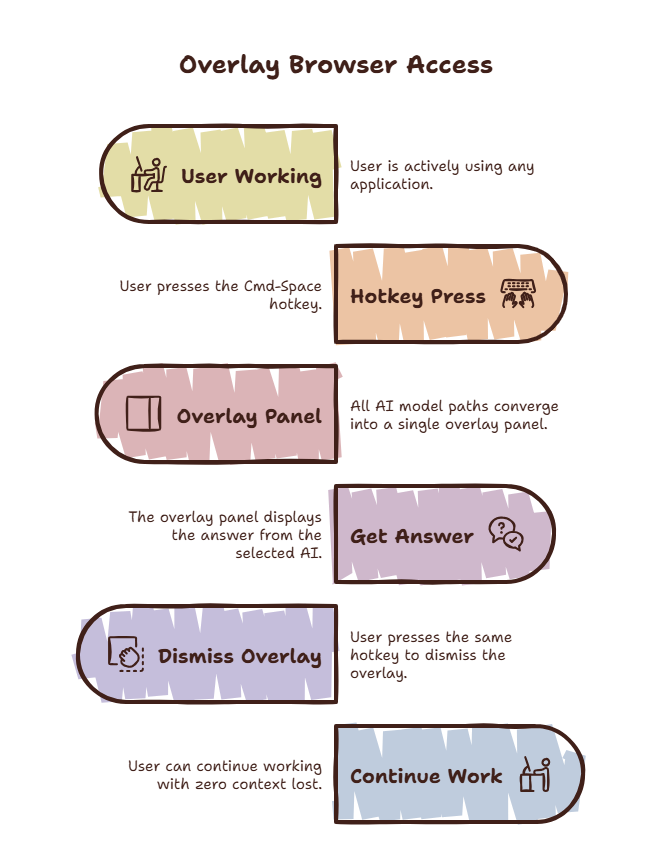
Instead of three tabs in Chrome and two desktop apps, use one overlay browser that holds all your AI tools. The overlay is a single hotkey away. Inside it, you have bookmarks for every AI tool you use.
Here is how the same workflow looks with a unified surface:
- Press Shift-Space. The overlay opens.
- Select ChatGPT. Brainstorm ideas.
- Press Shift-Space. Overlay closes.
- Press Shift-Space. Select Claude. Write the content.
- Press Shift-Space. Select Perplexity. Fact-check.
- Press Shift-Space. Back to your document.
You never left your workspace. You never opened a browser tab. You never saw a notification badge. You just used three AI tools in thirty seconds — with zero context switch cost.
Why This Works
The magic is not the overlay itself. It is what the overlay removes.
When you access AI tools through a regular browser, the browser environment is always present. The tabs. The bookmarks. The history. The extensions. The notifications. Every element is a potential distraction.
An overlay browser removes the environment. You get the tool, not the house the tool lives in.
This is the same principle behind full-screen mode in writing apps. Removing the menu bar, the dock, the desktop icons. Less visual noise means more cognitive capacity for the actual task.
SiteQuest applies this principle to AI access. A pop-in overlay that strips away everything except the AI tool you need. One hotkey to summon. One hotkey to dismiss. All your AI tools available from a single surface.
For a practical setup guide, read our post on using ChatGPT and Claude together.
The Tool Stack Approach
If you want to take this further, think of your AI tools as a stack — not a collection of independent tabs.
Your AI tool stack might look like:
- Layer 1 — Research: Perplexity or Gemini for finding information
- Layer 2 — Thinking: ChatGPT for brainstorming and exploration
- Layer 3 — Production: Claude for writing and long-form generation
- Layer 4 — Validation: Back to Perplexity for fact-checking and sourcing
Each layer serves a distinct purpose. You move between them intentionally. But the movement happens within the overlay — not by switching browser tabs.
This is how heavy AI users work. They do not reduce their tool count. They reduce their switching cost.
For more on this workflow, read our guide on how to use AI efficiently.
The SiteQuest Perspective
SiteQuest was designed for the multi-tool AI user. A lightweight overlay that keeps your entire AI tool stack one hotkey away. No tabs. No clutter. No context switching between tools. Just faster, more focused AI access.
Final Thought
The best AI tool setup is the one you stop noticing.