You treat your browser as your gateway to AI. Open Chrome. Navigate to ChatGPT. Ask a question. Switch back.
Why is your browser also your AI tool?
The browser was designed for browsing. Web pages. Links. Tabs. Bookmarks. It was not designed for rapid AI access. The entire interface is optimized for exploration — which is the opposite of what you want when you need a quick AI answer.
Have you ever noticed how opening a browser to ask an AI question feels like entering a different city?
The browser is a destination. You travel to it. You navigate its streets. You find what you need. You travel back.
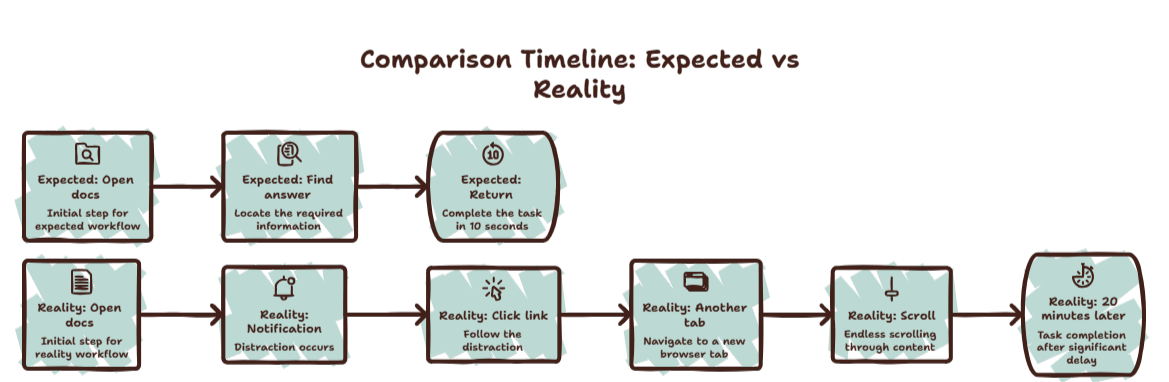
You opened this article to learn about AI browsers. But first, Chrome wanted to show you your unread emails, the tab you left open from yesterday, and a notification from Slack. Now you’re here. Reading this. While your AI answer waits in another tab.
There is a better way.
What an AI Browser Actually Is
You are using a general-purpose tool for a specific task. And the mismatch costs you focus.
An AI browser is not a regular browser with an AI sidebar. It is a browser built for a fundamentally different interaction pattern:
- Summonable — appears when you need it, disappears when you don’t
- Overlay-based — floats over your current workspace instead of replacing it
- Single-purpose — optimized for quick queries, not for browsing
- Hotkey-driven — one keystroke to summon, one to dismiss
A standard browser asks: “Where do you want to go?” An AI browser asks: “What do you need to know?”
Why Your Regular Browser Fails for AI
Regular browsers are content consumption engines. They are built to keep you inside them. Tabs, bookmarks, extensions, notifications — everything is designed to extend your stay.
This is great for reading articles. Terrible for quick AI queries.
When you open Chrome to ask ChatGPT something, Chrome wants you to see your open tabs, notice that email notification, read the headline on the news site you left open, and click a bookmark. Chrome is not malicious. It is optimized for engagement. Your attention is the product.
But for you, every extra second is a context switch. A distraction. A tax on your focus.
Curious how much that tax actually costs? Try the Focus Points Calculator — it measures how much of your day gets eaten by unnecessary context switching.
The Overlay Browser Concept
An overlay-based AI browser solves this by existing outside your regular browsing environment.
Instead of opening a browser, you open an overlay. It appears on top of your current workspace. It shows exactly one thing — the AI tool you need. No tabs. No bookmarks. No notifications.
You ask your question. You get your answer. You dismiss the overlay.
Your workspace never disappeared. Your focus never broke.
SiteQuest is the most refined version of this concept. A pop-in overlay browser that launches from Shift-Space. It renders full web pages — so you can use ChatGPT, Claude, Gemini, or any web-based AI tool. But it strips away the browser environment that makes regular browsers so distracting.
The Developer Use Case
For developers, an AI browser is especially powerful.
Most developers work in an editor and need AI for code generation, debugging, and documentation lookups. The current workflow involves leaving the editor, opening a browser tab, navigating to an AI tool, asking the question, reading the answer, returning to the editor, and rebuilding mental context.
An AI browser overlay eliminates the leaving and the returning. You stay in your editor. The overlay appears. You ask. You dismiss. You are back in your code.
For a full breakdown of this workflow, read our guide on overlay browsers for developers.
The Non-Developer Use Case
Non-developers have it even worse. You use more applications — email, documents, spreadsheets, design tools, presentation software. Each one is a separate environment. Adding AI access through a regular browser means adding yet another environment.
An AI browser overlay works across all applications. Press the hotkey in any app. The overlay appears. Dismiss it. You are back in your original app.
No matter how many applications you use in a day, the AI overlay is always one keystroke away.
How To Choose an AI Browser
If you want to try this workflow, here is what to look for:
- Global hotkey — it must work from any application
- Overlay mode — it must float over, not replace, your workspace
- Full browser engine — it must render web pages completely
- Minimal UI — no tabs, no bookmarks bar, no distractions
- Cross-platform — works on both Mac and Windows
SiteQuest checks all these boxes. It is built specifically as an AI browser — not a regular browser with AI features tacked on.
For a full comparison of available options, read our roundup of the best overlay browsers for Mac.
Final Thought
Stop using a library to take a sip of water. Use a glass.