You’re in the middle of writing code. You need to ask ChatGPT a quick question about a function signature.
You press Alt-Tab. You open the browser. You navigate to ChatGPT. You type your question. You read the answer. You press Alt-Tab back to your editor.
And then you stare at the screen.
What was I doing again?
You opened this article to learn how to stop tab-switching to ChatGPT. But first, you opened a browser tab to find this article. Now you’re here. Reading this. While ChatGPT waits in another tab.
Five seconds pass while your brain rebuilds the context. Ten seconds. You re-read your code. You re-read your comments. You find your place. You continue.
This cycle plays out hundreds of times per week. Each instance costs you a few seconds of switch time and several minutes of context recovery. Over a month, the time lost is measured in hours.
Curious how much that costs you? Try the Focus Points Calculator — it measures how much of your day gets eaten by unnecessary tab switching.
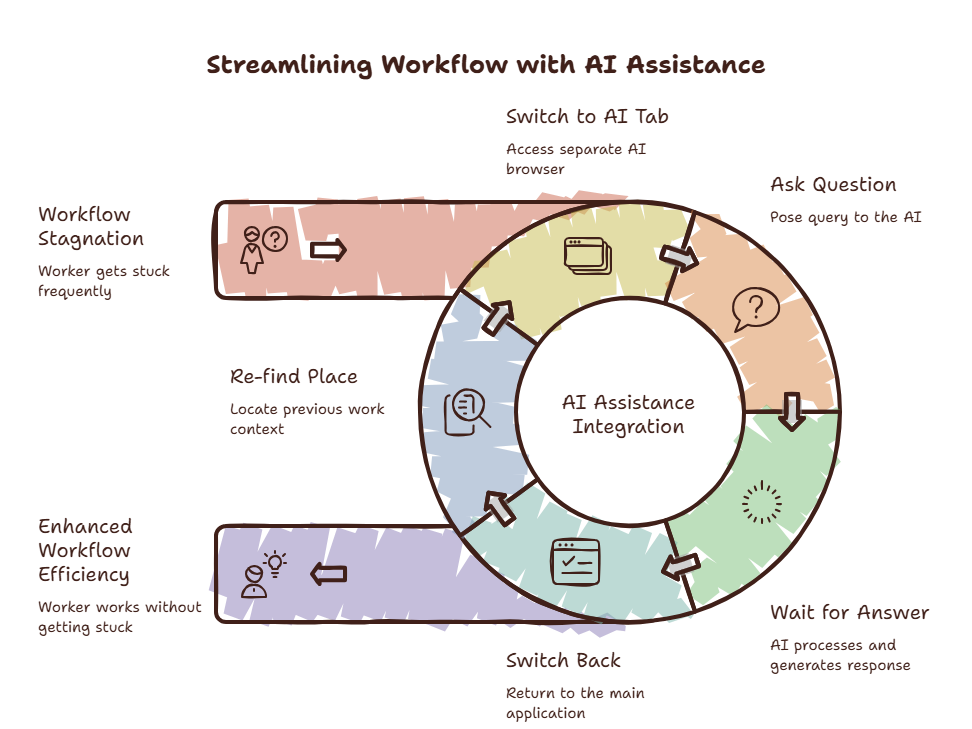
The AI Access Paradox
AI tools are supposed to make you faster. But every time you use one, you break your flow. The tool that should accelerate you is actually fragmenting your attention.
When ChatGPT launched in late 2022, the only way to use it was through a browser tab. Millions of people built a muscle memory habit around this pattern. Open tab. Ask question. Read answer. Close tab.
This pattern made sense in 2022. It doesn’t make sense in 2026. Today, every major AI assistant offers some form of desktop integration. But most people still use the browser tab pattern because it’s what they learned first. The habit is stronger than the available alternatives.
Have you ever noticed that you open ChatGPT, ask one question, and then find yourself scrolling through something unrelated before closing it?
That’s not a discipline problem. That’s the browser environment actively pulling you away from your intent.
The Hidden Cost of the Browser Tab Pattern
Opening ChatGPT in a browser tab feels free. It’s three seconds. But here’s what actually happens:
- Three seconds to open the tab
- The browser loads with all your other open tabs visible
- Your brain registers every notification badge, every unread count, every interesting headline
- You suppress the urge to click them — which costs cognitive energy
- You ask your question
- You read the answer
- You switch back to your editor
- Your brain spends 1-5 minutes rebuilding context
The three-second cost is visible. The five-minute recovery is invisible. And because it’s invisible, most people never connect the two.
Method 1: Overlay Browser
An overlay browser like SiteQuest lets you access ChatGPT without leaving your current application. Press Shift-Space. A sidebar opens over your current screen. It contains a full browser view — so you can use ChatGPT, Claude, Gemini, or any web-based AI tool.
Ask your question. Read the answer. Press the hotkey again. The sidebar disappears. Your application is exactly where you left it. No context switch. No recovery time.
For a full breakdown of why this works better than split screen, read our comparison of overlay vs split screen.
Method 2: Dedicated Desktop Apps
ChatGPT and Claude both offer native desktop applications. These live in your menu bar and can be summoned with a global hotkey.
The advantage over a browser tab is that the desktop app is always one keystroke away. The disadvantage is that it opens as a separate window, which still triggers a partial context switch.
Desktop apps are better than browser tabs. They’re worse than overlay solutions because they still hide your primary workspace.
Method 3: Editor Plugins
If you spend most of your time in VS Code, JetBrains, or another code editor, editor plugins are your best option.
VS Code has extensions for ChatGPT, Claude, and GitHub Copilot Chat. These display a chat panel within your editor. You never leave the editor. Your code stays visible.
This is the most seamless option for developers. The AI appears in the same window as your code.
For more developer-specific workflows, read our guide on the fastest way to access AI while coding.
Method 4: API-Based Tools
For power users who need AI in custom workflows, API-based tools like Ollama or the OpenAI API let you query AI directly from the terminal.
sgpt "How do I reverse a linked list in Python?"The terminal is a low-friction environment. Switching to the terminal and back is faster than switching to a browser. It’s not as seamless as an overlay, but it’s significantly faster than the browser tab.
Method 5: Custom Keyboard Macros
Tools like Keyboard Maestro (macOS) and AutoHotkey (Windows) let you create hotkeys that open a specific URL, resize the window, and return focus when dismissed.
With a well-configured macro, pressing Ctrl-Shift-C could open a floating ChatGPT window at 400x600 in the corner of your screen. Pressing Escape closes it and returns focus to your editor.
It’s more work to set up. But it gives you complete control.
The SiteQuest Perspective
SiteQuest was built because AI should make you faster — not force you to constantly switch contexts. A pop-in overlay keeps your AI tools one hotkey away without ever hiding your primary workspace. The tool that accelerates you shouldn’t also fragment you.
Final Thought
The fastest AI is the one you don’t have to switch screens to use.