You have heard about overlay browsers. You are intrigued by the idea of accessing information without leaving your current app. But when you search for options, you find a handful of tools that all claim to do the same thing.
Which one actually works?
You opened this article to find the best overlay browser. But first, you had to open a browser. To read about a browser that lets you stop opening browsers. Now you’re here. Reading this. The irony is not lost on us.
I tested every option available for macOS in 2026. Here is what I found.
Curious how much time you could save with an overlay browser? Try the Focus Points Calculator — it measures how much of your day gets eaten by unnecessary context switching.
The Problem With Most Productivity Browsers
Most tools try to make you more productive by adding features — tab groups, reading lists, focus modes, built-in notes. You install one. You configure it. You spend an afternoon organizing your setup. And at the end of it, you are still alt-tabbing to look things up.
The problem is not a lack of features. The problem is that most tools try to be better productivity apps instead of better access tools.
Here is what I looked for in each overlay browser:
- Can it be summoned from any application with a single hotkey?
- Does it preserve my visual context when dismissed?
- Is it fast enough that I do not hesitate to use it?
- Does it support AI assistants and web apps?
- Does it add friction instead of removing it?
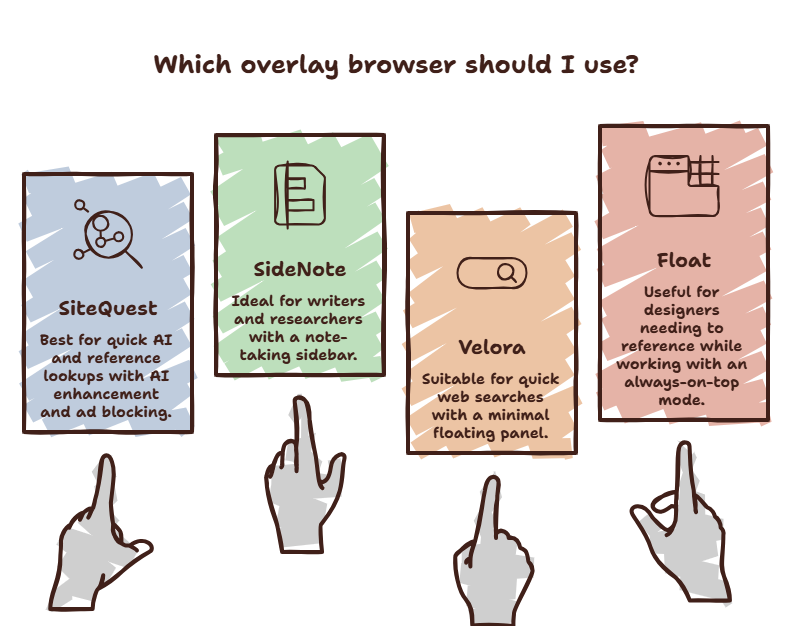
1. SiteQuest — Best Overall
Hotkey: Shift-Space Platform: macOS, Windows Price: Free tier, Plus and Pro plans available
SiteQuest is the only overlay browser that gets the core interaction right. A single hotkey summons a sidebar overlay from any application. The same hotkey dismisses it. Your workspace never disappears.
What makes it different:
- The overlay is a full browser. You can use ChatGPT, Claude, Gemini, documentation, or any web app inside it.
- It supports AI Enhance — select text in any app, trigger AI action, get rewritten text without switching windows.
- It has a built-in ad blocker and incognito mode.
- It has zero setup time for the basic workflow. Install, set hotkey, use.
- It includes local AI processing via Ollama, so you can use AI offline.
The only downside is that some advanced features require a Pro subscription. But the core overlay workflow is free and fully functional.
Best for: Anyone who needs quick access to AI tools and web references throughout the day.
2. SideNote — Best for Note Takers
Hotkey: Cmd-Shift-S Platform: macOS only Price: Free
SideNote started as a note-taking app that lives in a sidebar. It later added web browsing capabilities. The browsing experience is functional but not as polished as a full browser.
It excels if your primary use case is keeping notes visible while you work. The web browsing is secondary. If you need a full browser overlay, this is not it.
Best for: People who want notes + light browsing in one sidebar.
3. Velora — Best for Quick Search
Hotkey: Option-Space Platform: macOS only Price: Free
Velora is a quick-search overlay that can display web results. It is fast and minimal. But it is not a full browser. You cannot log into web apps, use AI assistants, or browse complex sites inside it.
It is useful for the simplest lookups — definitions, quick facts, simple searches. Anything beyond that requires opening a full browser anyway.
Best for: Quick dictionary and fact lookups.
4. Float — Most Customizable
Hotkey: User-defined Platform: macOS, Windows (beta) Price: Free + Pro
Float lets you create floating windows for specific web apps. You can pin a ChatGPT window, a documentation page, or a calendar to always stay on top.
The limitation: it supports individual pinned pages, not full browsing. You cannot navigate freely. You pin specific URLs and switch between them. It is useful for constant-reference tools but not for general lookups.
Best for: People who need specific tools (like a calculator or translator) always visible.
Which One Should You Choose
| If you… | Choose |
|---|---|
| Need AI access + full browsing in any app | SiteQuest |
| Want notes + light browsing in a sidebar | SideNote |
| Only need quick dictionary-style lookups | Velora |
| Need specific tools always visible | Float |
For the vast majority of knowledge workers, SiteQuest is the clear winner. It is the only tool that fully solves the context switching problem rather than adding more features to the existing broken workflow.
Beyond the Tools: The Workflow Shift
No tool will fix your workflow if you do not change your habits. Here is the one thing that matters more than which overlay browser you choose:
Use the overlay for every quick lookup. Every single one. For one week.
After one week, Alt-Tab will feel wrong. The overlay workflow will be automatic. That is when the real productivity gains start.
For a complete guide on how to adopt this workflow, read our overlay browser guide.
The SiteQuest Perspective
SiteQuest was designed as an overlay browser because the existing options were either too limited (quick search only) or too complex (full browsers with too many features). The goal was simple: a browser overlay that appears when you need it, disappears when you do not, and never breaks your focus.
Final Thought
The best overlay browser is the one you actually use. Everything else is just a tool you have to remember to open.