Imagine you are cooking. You are in the middle of chopping vegetables. You need to check the recipe. You walk to the other side of the kitchen, open a cookbook, find the page, read the measurement, walk back to the counter, and continue chopping.
By the time you return, you have forgotten how many cups of flour you need. You walk back to check again.
This is how a standard browser works. You leave your workspace, go to the browser, find the information, and return. Every single time.
Now imagine the recipe was posted on the wall directly in front of you. You glance up, read it, and continue chopping. You never moved. Your hands never stopped.
That is an overlay browser.
You opened this article to understand what an overlay browser is. But first, you had to open your current browser — with all its tabs and distractions — to find this page. Now you are here. Reading this. While your regular browser sits there, waiting to pull you in.
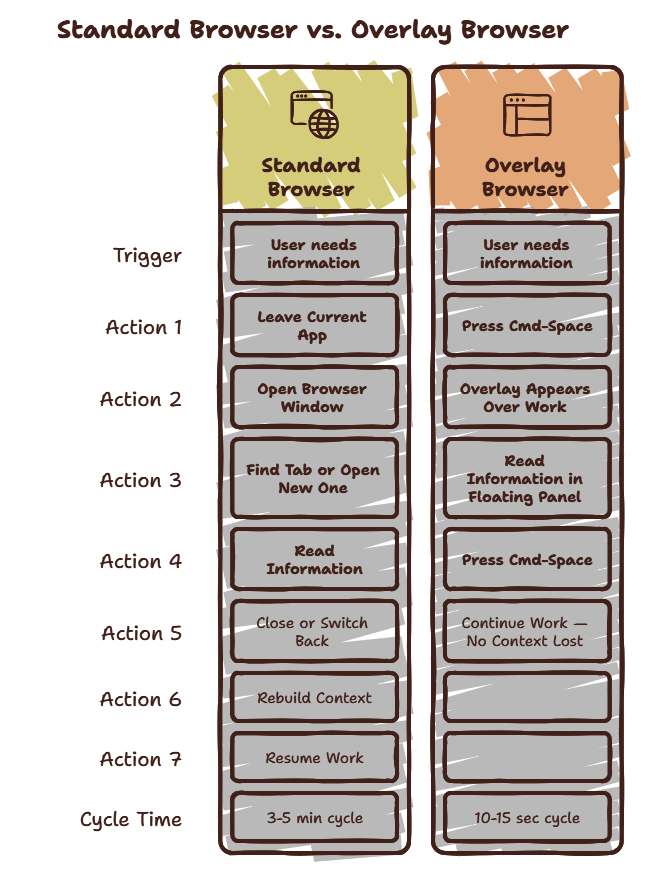
The Standard Browser Problem
Every time you open a browser to look something up, you are commuting away from your workspace. The commute takes three seconds. The recovery on the way back takes three minutes. You do not notice the recovery because it happens inside your brain, invisible to you.
The standard browser was designed in the 1990s. It was designed for a world where you opened one or two tabs, did your research, and closed them. It was not designed for a world where you have 20 tabs open, multiple AI assistants, cloud documentation, and constant information needs.
An overlay browser solves the Desktop Commute problem by eliminating the commute entirely.
Curious what your desktop commute is costing you? Try the Focus Points Calculator — it measures how much of your day gets eaten by the act of leaving and returning.
How an Overlay Browser Works
An overlay browser runs as a lightweight application in the background. It does not have a traditional window or taskbar icon. It lives in your system tray or menu bar, waiting.
When you press its hotkey — typically Shift-Space — it appears as a sidebar or floating panel on top of your current application. It contains a full browser view. You can visit any website, use any web app, search, ask AI assistants, read documentation.
When you press the hotkey again, it disappears. Your primary application is exactly where you left it. No tabs to close. No windows to rearrange. No context to rebuild.
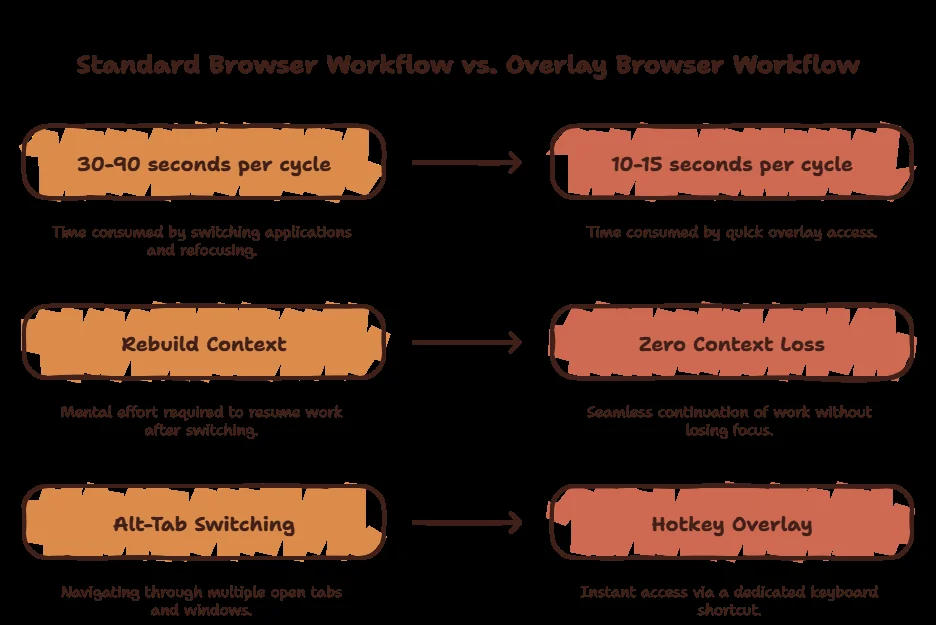
What Makes It Different
It Does Not Take Over Your Screen
A standard browser opens as a full window. It hides everything behind it. Your brain must register the complete new environment, process it, and orient itself.
An overlay browser occupies a fraction of your screen. Your main workspace stays visible. Your brain maintains its orientation.
It Is Hotkey-Native
You open a standard browser by clicking an icon, navigating a dock or taskbar, or using a keyboard shortcut that still requires selecting a window.
An overlay browser is always one hotkey away. The same hotkey opens and closes it. The muscle memory builds quickly.
It Does Not Have Tabs
An overlay browser typically has one active view at a time. This sounds like a limitation. It is actually the feature that prevents tab sprawl. You use it for one task, dismiss it, and the next time you open it, you start fresh.
No tab debt. No “I will close these later.” No background cognitive load from 17 open tabs.
It Preserves Your Context
This is the core difference. When you close an overlay browser, your primary application is exactly as you left it. Your brain does not need to rebuild its mental model. The recovery cost is effectively zero.
Who Should Use an Overlay Browser
Developers. You reference documentation, ask AI assistants, and search for solutions constantly. Every switch breaks your flow. An overlay browser keeps your editor in view.
Designers. You switch between your design tool, design systems, reference images, and inspiration. An overlay browser keeps references accessible without leaving Figma or Sketch.
Writers. You research while writing. An overlay browser lets you fact-check without leaving your document.
Researchers. You need multiple sources for a single piece of work. An overlay browser lets you check sources without losing your place in your primary document.
AI power users. You use ChatGPT, Claude, Gemini, or Perplexity regularly. An overlay browser brings all of them into a single accessible layer.
What an Overlay Browser Is Not
An overlay browser is not a replacement for your standard browser. It is a complement.
Use your standard browser for deep research sessions, multi-tab workflows, media consumption, and tasks that genuinely require full-screen space.
Use the overlay browser for the quick lookups, AI queries, documentation checks, and reference searches that make up 80% of your daily browser usage.
The overlay handles the quick micro-tasks. The standard browser handles the deep sessions. Together, they cover everything.
Practical Setup
Getting started with an overlay browser takes two minutes:
- Download SiteQuest. Available for macOS and Windows.
- Set your hotkey. The default is Shift-Space. Works system-wide.
- Configure your default search. Set your preferred search engine or AI assistant as the default page.
- Use it for one day. Every time you need to look something up, use the overlay instead of Alt-Tab. The habit forms quickly.
The SiteQuest Perspective
SiteQuest is an overlay browser built specifically for this workflow. It was designed because the standard browsing pattern — leave app, get distracted, return, recover — was costing people hours of productive time every day. A pop-in overlay that follows you across all your applications, always one hotkey away.
Final Thought
You do not need a better browser. You need a browser that stays out of your way until you need it.