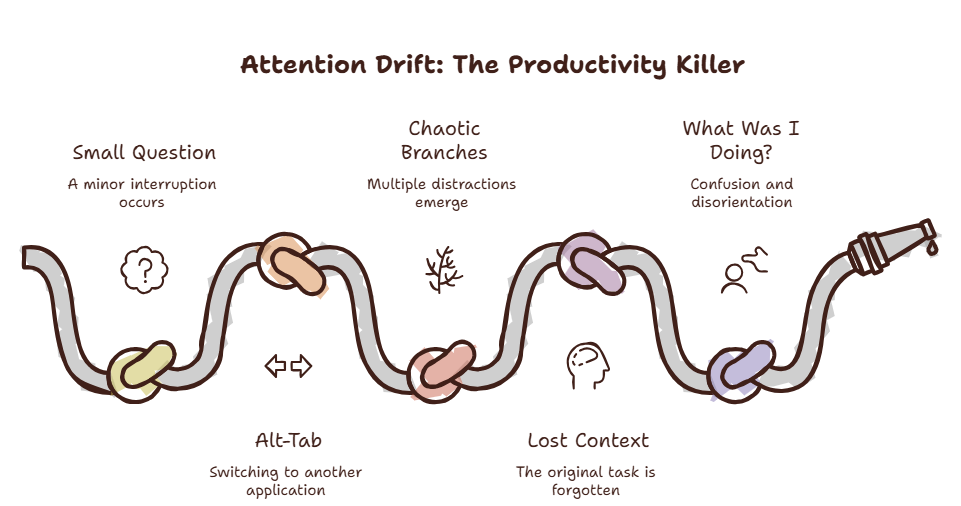
You press Alt-Tab. Your screen shifts. Now you’re looking at a completely different window.
Every open tab. Every notification badge. Every icon in your taskbar. All competing for your attention.
You find what you need. You press Alt-Tab again to go back. But your brain is still processing everything it saw in that split second.
What was I doing again?
You pressed Alt-Tab to check one thing. Now you’re here. Reading this. Trying to remember what you opened Alt-Tab for in the first place.
The Alt-Tab maneuver is the most common micro-interruption in modern computing. And it’s one of the most expensive — because you barely notice it happening.
The Tab Debt Problem
Alt-Tab doesn’t just switch your active window. It switches your entire visual environment. Your brain has to process the new layout, recognize where things are, suppress irrelevant information, and locate your target. All of this takes cognitive bandwidth — even when you know exactly what you’re looking for.
The real cost isn’t the switch itself. It’s what happens when you return. Your primary workspace is gone. Your mental model has faded. You spend precious seconds — or minutes — rebuilding it.
According to RescueTime’s 2026 study, the average knowledge worker uses Alt-Tab over 80 times per day. At 23 minutes of recovery per interruption, that adds up to hours of lost productive time daily.
Over 80 times a day. And you wondered why you feel exhausted at 3 PM.
Have you ever noticed how you sometimes press Alt-Tab, forget what you were looking for, and press it again to go back?
That’s your brain admitting the switch cost was higher than the task value.
Curious how much Alt-Tab actually costs you? Try the Focus Points Calculator — it measures how much of your day gets eaten by unnecessary window switching.
For a complete breakdown of how these costs accumulate, read our context switching guide.
Alternative 1: Overlay Browser
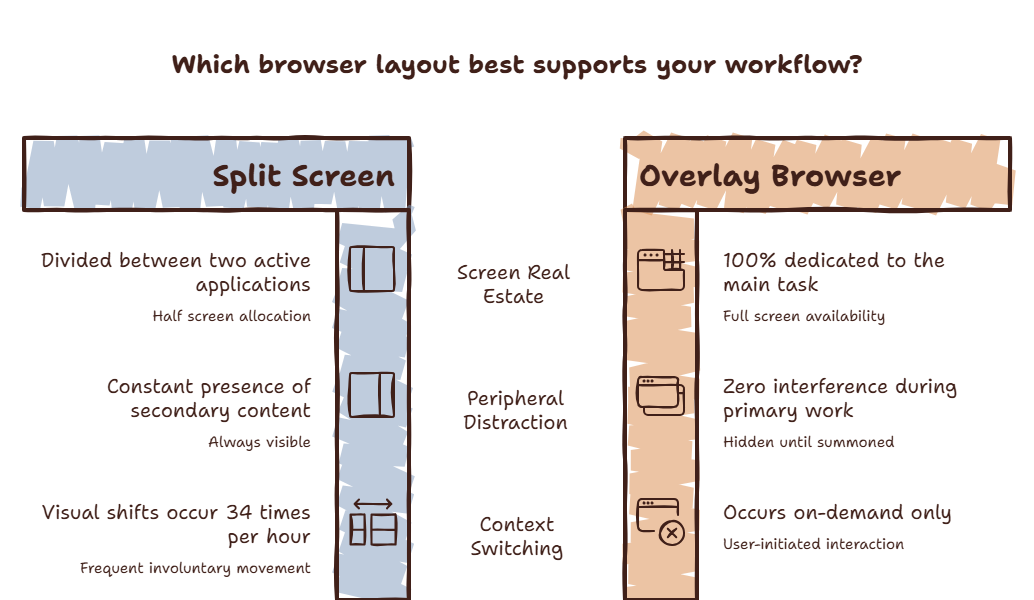
Instead of leaving your current application, an overlay browser floats on top of your workspace. You summon it with a hotkey, find what you need, and dismiss it. Your primary application never disappears. Your visual context never breaks.
SiteQuest is built for this workflow. Press Shift-Space. A sidebar emerges. Find what you need. Press the hotkey again. It vanishes.
No Alt-Tab. No context break. No recovery time.
Alternative 2: Virtual Desktops
Both Windows and macOS support multiple virtual desktops. Instead of piling windows in one space, you organize them by task. One desktop for code. One for communication. One for research.
Switching between desktops feels like moving between physical rooms. Each space has a defined purpose. Your brain associates the space with the task.
The catch: you still leave your current workspace. The transition is softer than Alt-Tab, but it’s still a context switch.
Alternative 3: Window Management Tools
Tools like Magnet (macOS), Rectangle (macOS, free), and FancyZones (Windows) let you define precise window layouts with keyboard shortcuts. Snap your editor to the left 70% and your browser to the right 30%.
This reduces the need to Alt-Tab because you can keep multiple windows visible at once. The trade-off is less screen space for your primary task.
For a detailed comparison, see our article on overlay vs split screen.
Alternative 4: Application-Specific Quick Access
Most serious tools have built-in quick access panels. VS Code has Cmd-P for file search. Slack has Cmd-K for channel navigation. Notion has Cmd-P for search.
Learning these shortcuts reduces reliance on Alt-Tab because you navigate within the application. The principle is the same: find what you need without leaving your current context.
Alternative 5: Keyboard Macros
Tools like Keyboard Maestro (macOS) and AutoHotkey (Windows) let you create custom hotkeys for complex actions. One key could open a specific website in a floating window, capture a screenshot, paste your clipboard, and dismiss — all without touching your mouse.
The learning curve is steep. But for repetitive lookup workflows, the payoff is enormous.
Which Alternative Is Right For You
| If you… | Try |
|---|---|
| Need quick access to AI tools and docs | Overlay browser |
| Work on clearly separated projects | Virtual desktops |
| Need to reference two documents at once | Window management tools |
| Use the same few apps all day | App-specific quick access |
| Have repetitive lookup workflows | Keyboard macros |
The common thread across every effective alternative is the same: reduce how many times you fully leave your current workspace.
The SiteQuest Perspective
SiteQuest was built because Alt-Tab was never designed for the way we work today. It was designed for a time when you had three windows open. Not thirty. A pop-in overlay that follows you across applications — so you never need to leave your work to find an answer.
Final Thought
Every interruption costs more than the interruption itself. The time you lose isn’t the two seconds of switching. It’s the two minutes of recovery you don’t realize you’re paying.